Playback
The playback page is laid out much like the live view page.
Channel grid
The center of this page displays the feeds of the cameras that have been activated (in the list to the left).
Click on a channel to select it. A blue outline appears, and the active camera is highlighted in the camera list.
Camera list
To the left of the grid, the system lists all cameras connected to the NVR.
-
Cameras attached directly to the NVR are named with the NVR port number and camera name as customized under Configuration > Camera > OSD Settings.
-
Cameras attached via the network use the camera name as customized under Configuration > Camera > OSD Settings.
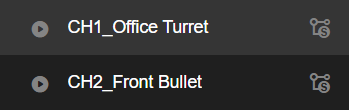
The Play/Pause  icon is not a control; it highlights to show when the camera is playing back recorded video.
Click the feed  icon to select whether the camera sends its main stream or sub-stream to the channel.
Calendar sidebar
Click the gray carat bar to hide (or extend) the sidebar.
This shows a standard monthly calendar interface at the top. Each date that has saved recordings has colored dots below the date, based on which types of recordings have been saved on those days.
Below that, use the dropdown to select a specific type of recording, or any type. Click Search to display a graphic of those recordings in the timeline at bottom.
Timeline
The bottom shows a timeline and playback controls.

-
Timeline. This displays colored bars for each type of recording. The playhead is always in the center. Click and drag the timeline to pan the span shown.
-
Zoom buttons.
-
Color key.
-
Playback controls. Click the Play
 icon to start playback on all channels. Click the Stop icon
  to stop. Click
  and
and  to rewind or advance the playback.
 -
Editing controls.
-
 Channel layout. If the channel layout is 8 screens or fewer, the feed icon activates; click it to toggle all fields between main and sub streams. If the grid has 9 channels or more, all cameras send their substream.
 -
 Take picture: This saves a photo of the selected channel.
 -
 Digital Zoom: Click this, and click and drag in the active channel to zoom the feed to the selection. This icon remains blue as long as any channel has digital zoom active. Click it again to cancel the zoom (if any) for the selected channel.
 -
 Audio/Mute: Toggles surveillance audio for the selected channel.
 -
 Fullscreen: This hides everything but the channel grid. Press Esc to return to the normal view.
-