ClareVision Pro App
Download the ClareVision Pro app for free from the Apple App or Google Play store. Use this app with the CLR-V300-[4/8]PNVR and CLR-V300-16PNVR4.
Logging in for the first time
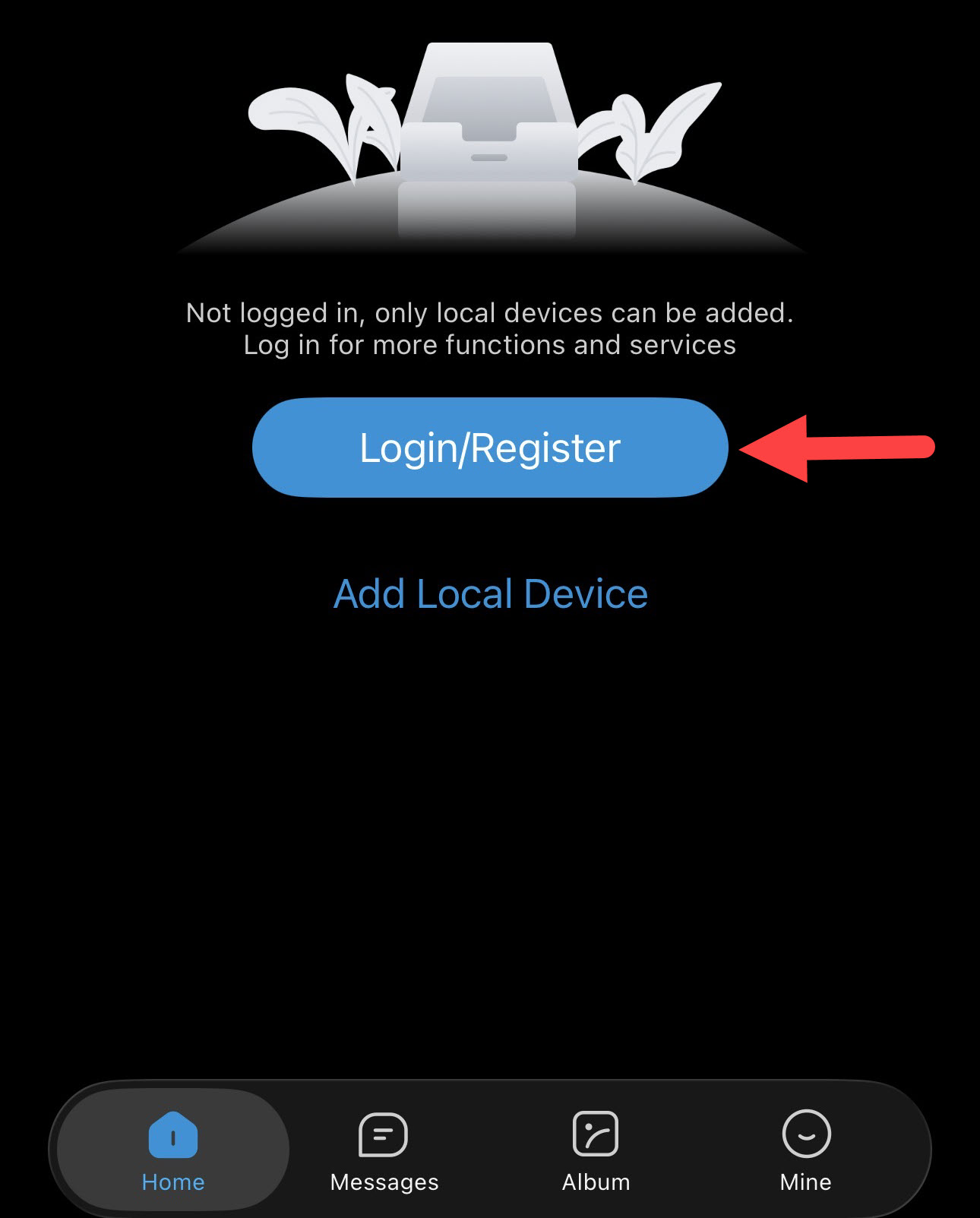
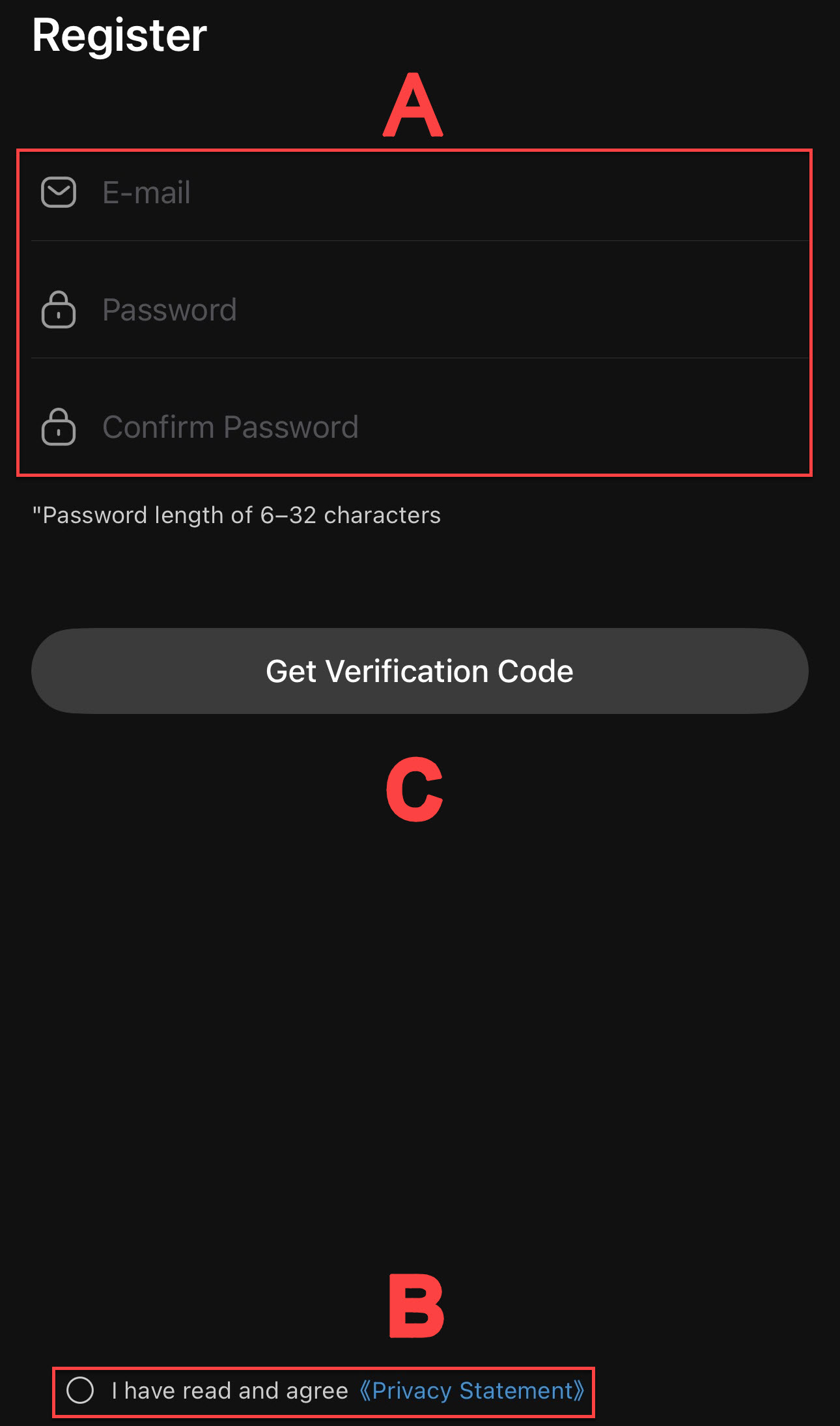
1. Open the ClareVision Pro app and click Login/Register.
2. Click Register.
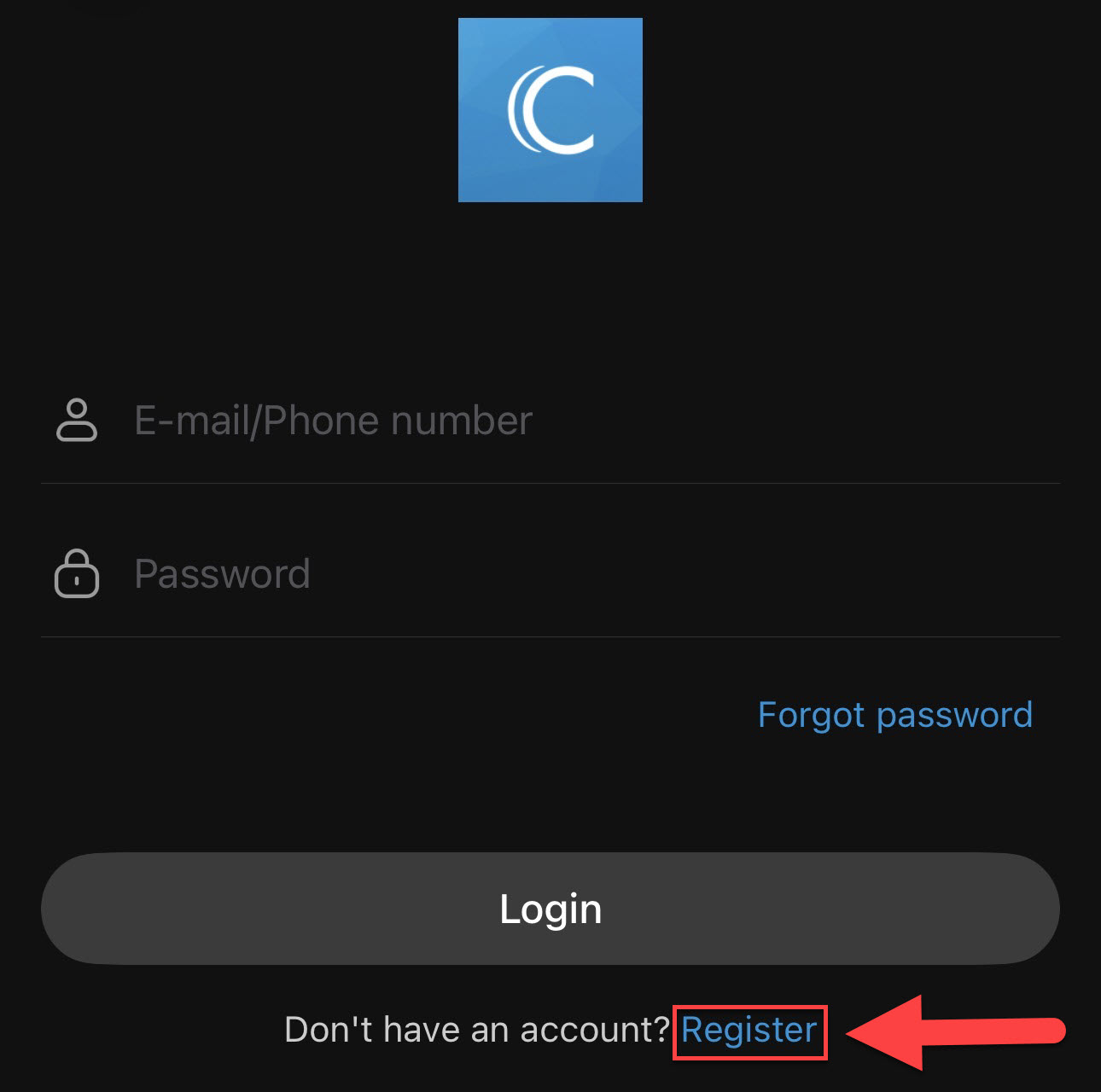
3. Create your login credentials and check the privacy statement
4. Click Get Verification Code.
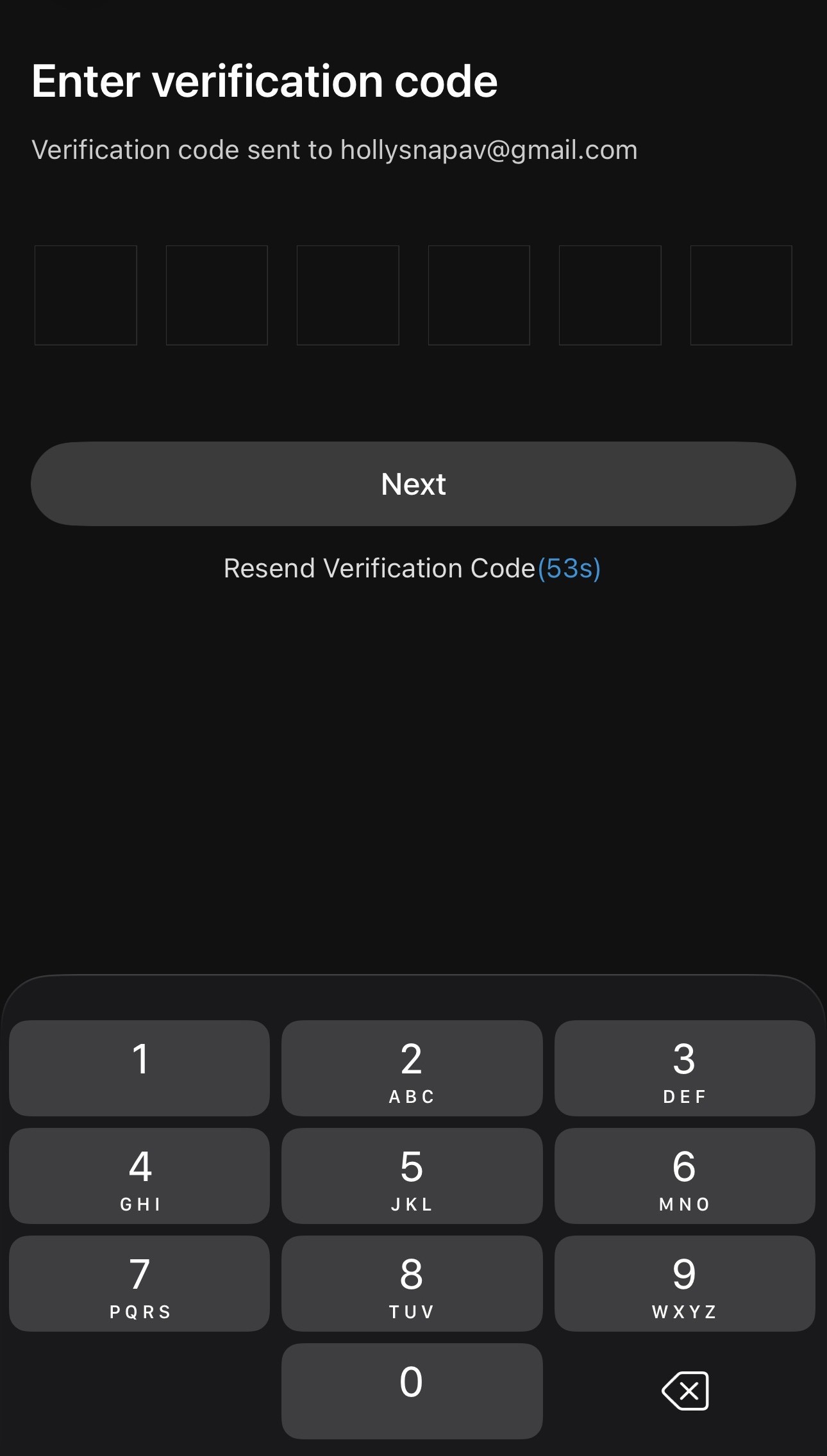
5. Enter the verification code you received by email.
Note: Check your spam folder if you have not received the code. Click resend the verification code after 30-60 seconds if you still have not received it.
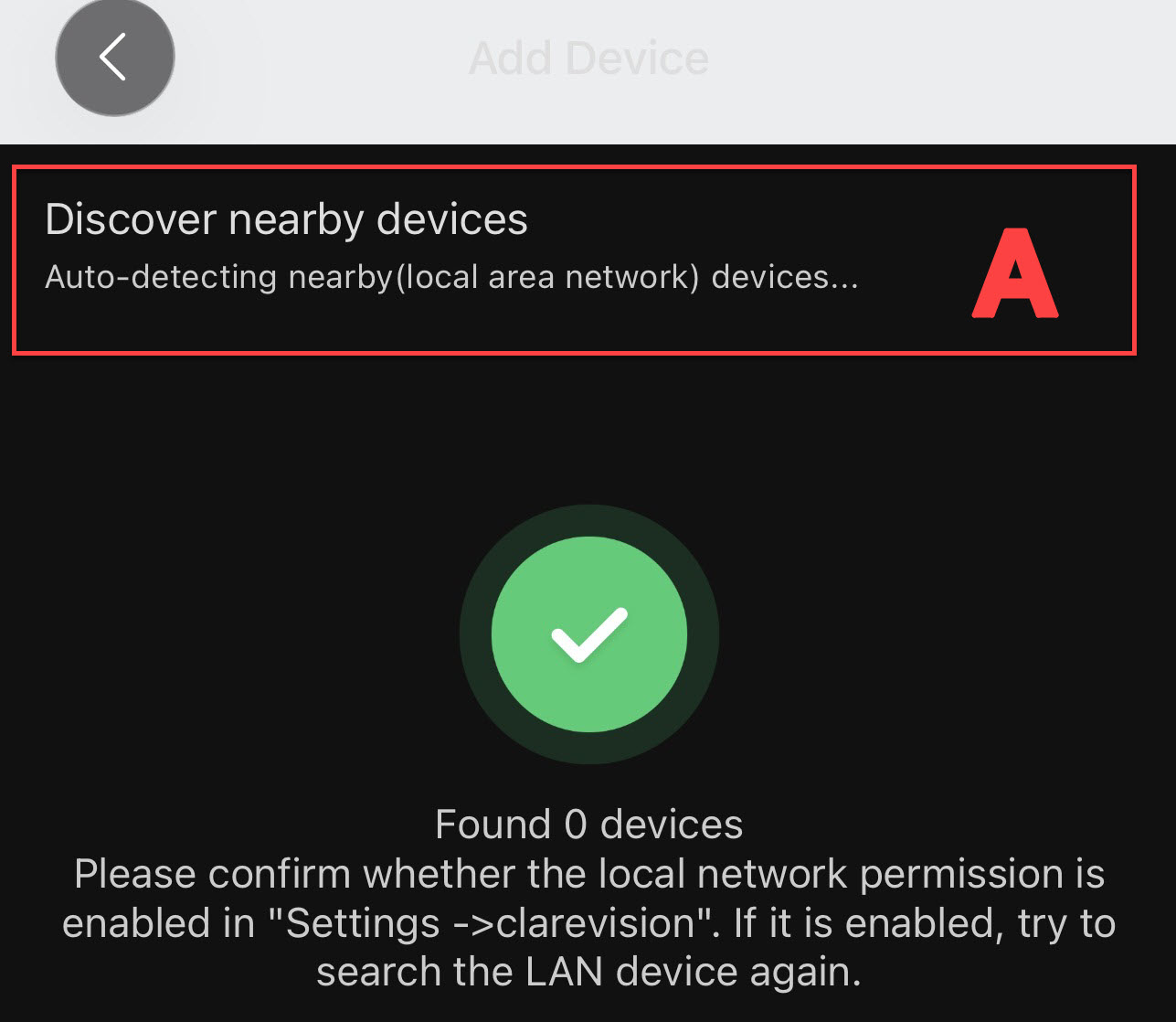
Add device
Add the NVR using one of these three methods:
A. Discover nearby device through auto-detection on the local area network (LAN).
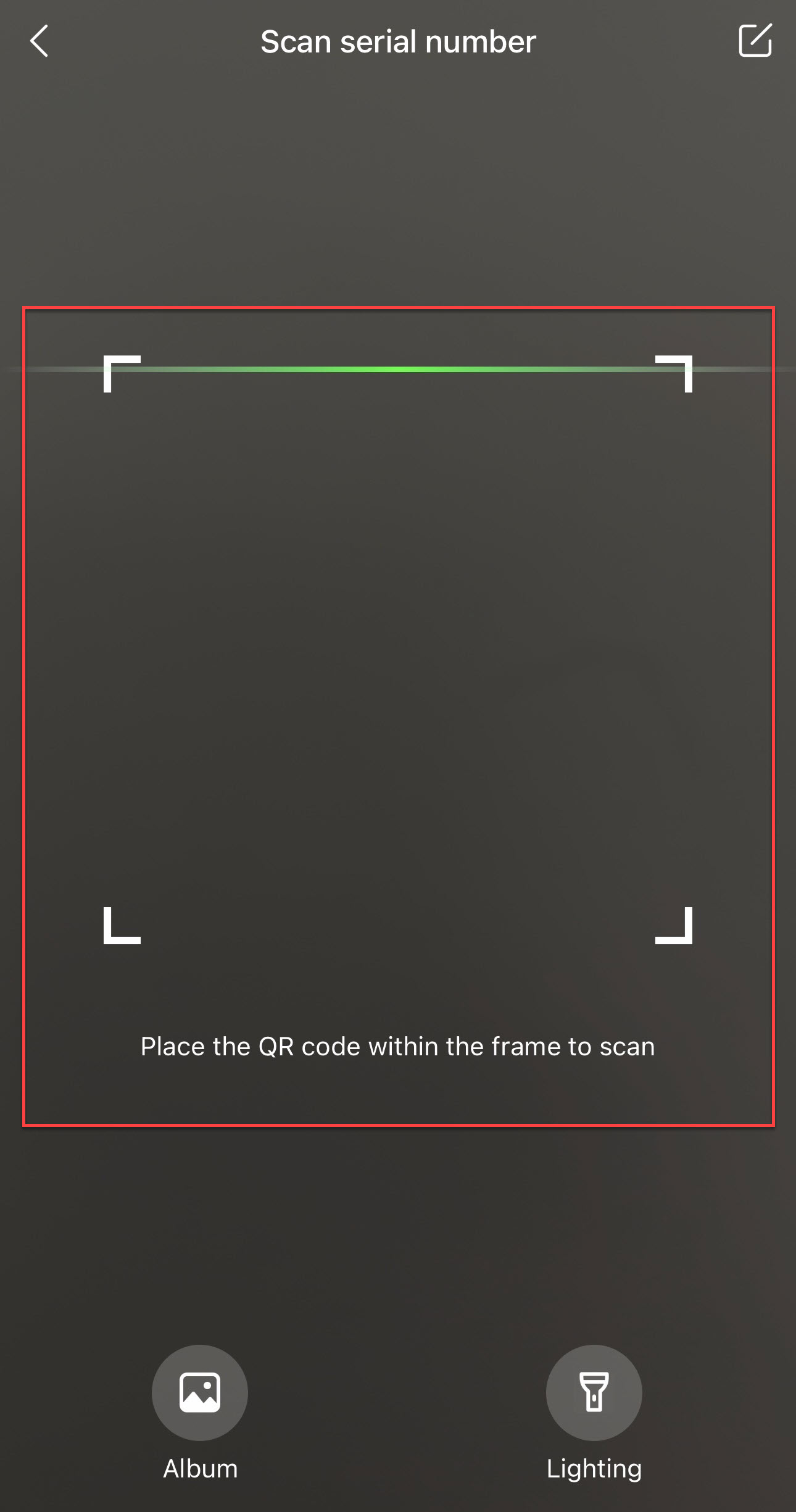
B. Serial Number Addition (recommended): Scan the QR code on the device to add.

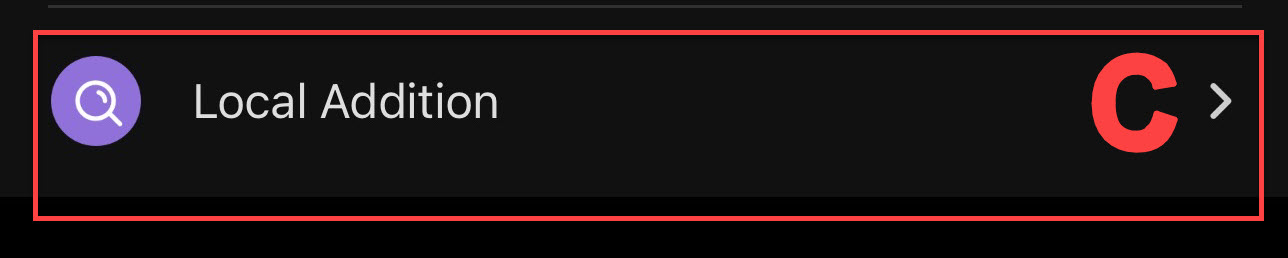
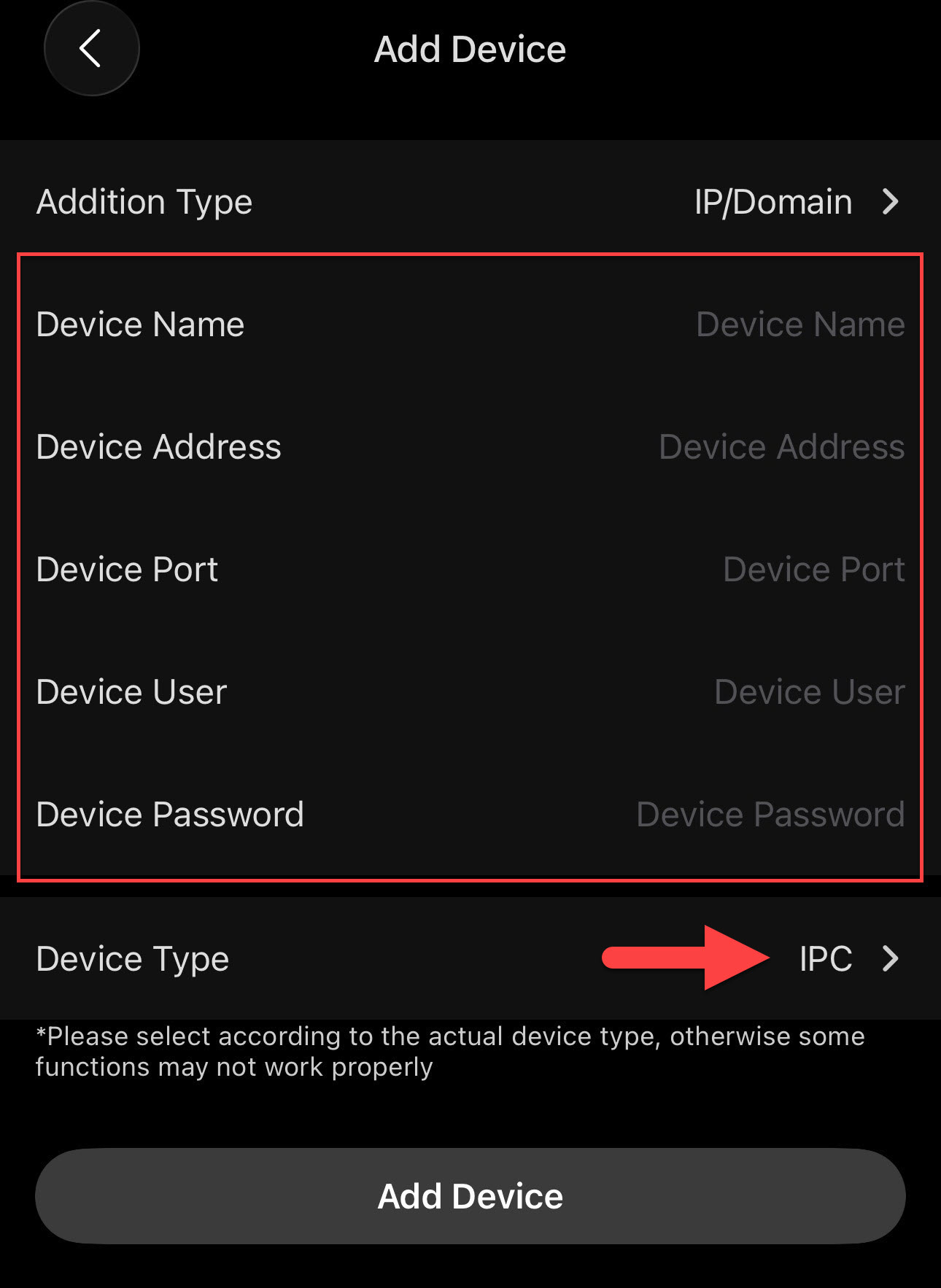
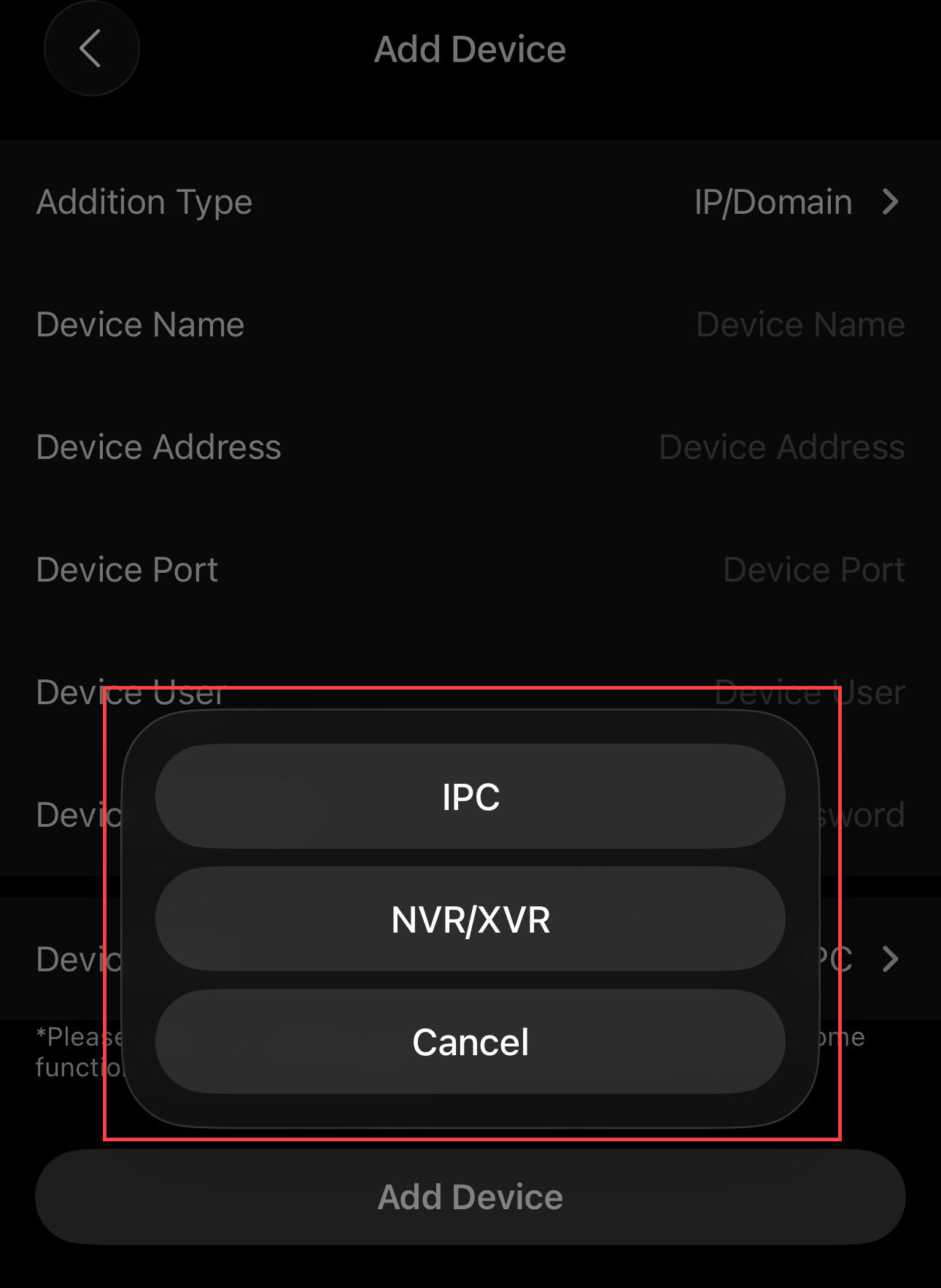
C. Local Addition: enter the Device Name, Device Address, Device Port, Device User, and Device Password. Then, choose the Device Type: IPC, or NVR/XVR. Click Add Device.
Home screen
-
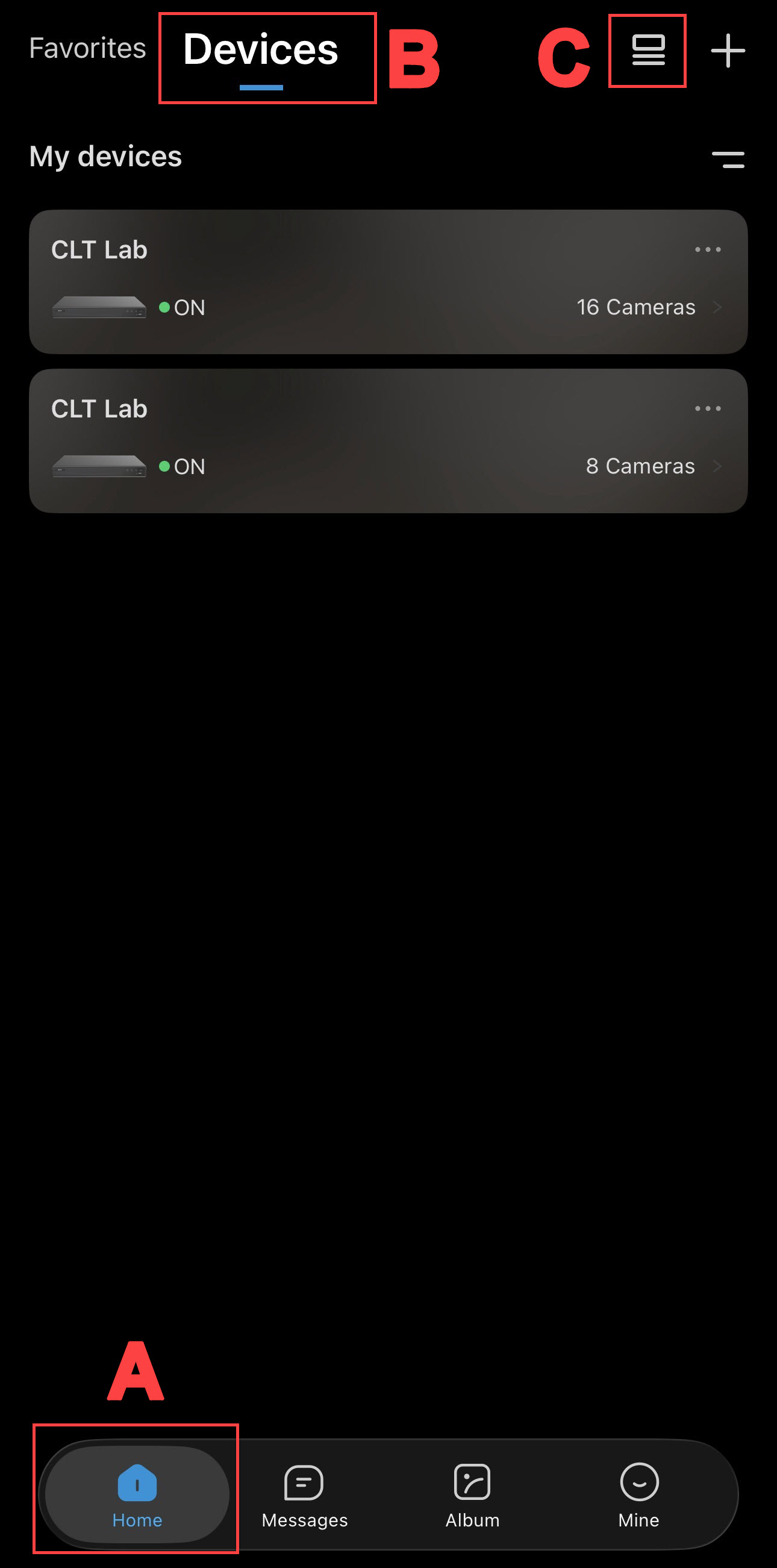
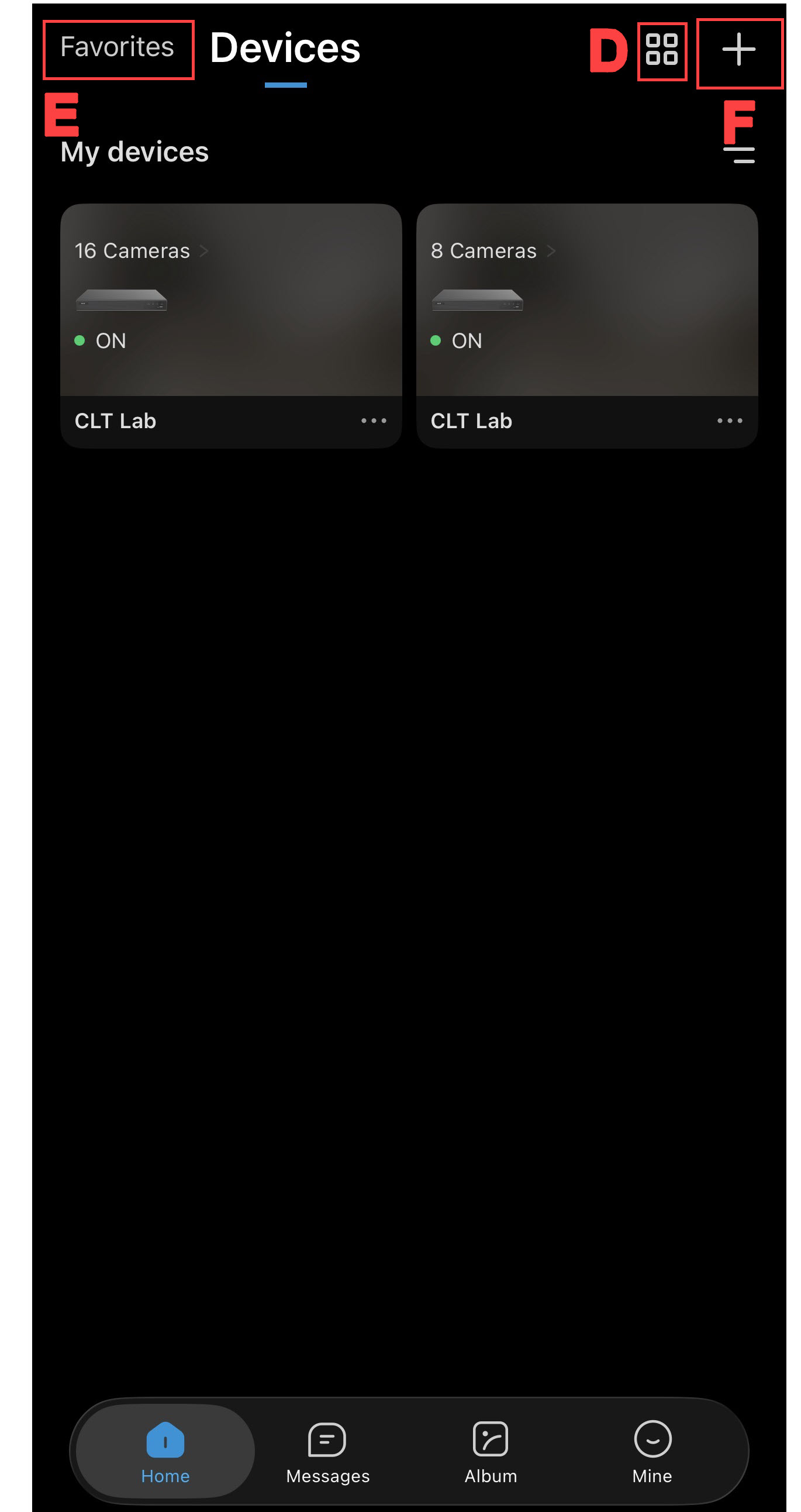
Click on the (A) Home icon and (B) Devices to view your list of devices.
-
Use the (C) View Mode icon to shift your devices into grid view. Click the (D) icon again to revert back to list view.
-
Click on (E) Favorites to add and manage favorite devices.
-
Click on the (F) Add icon to add a new Group.
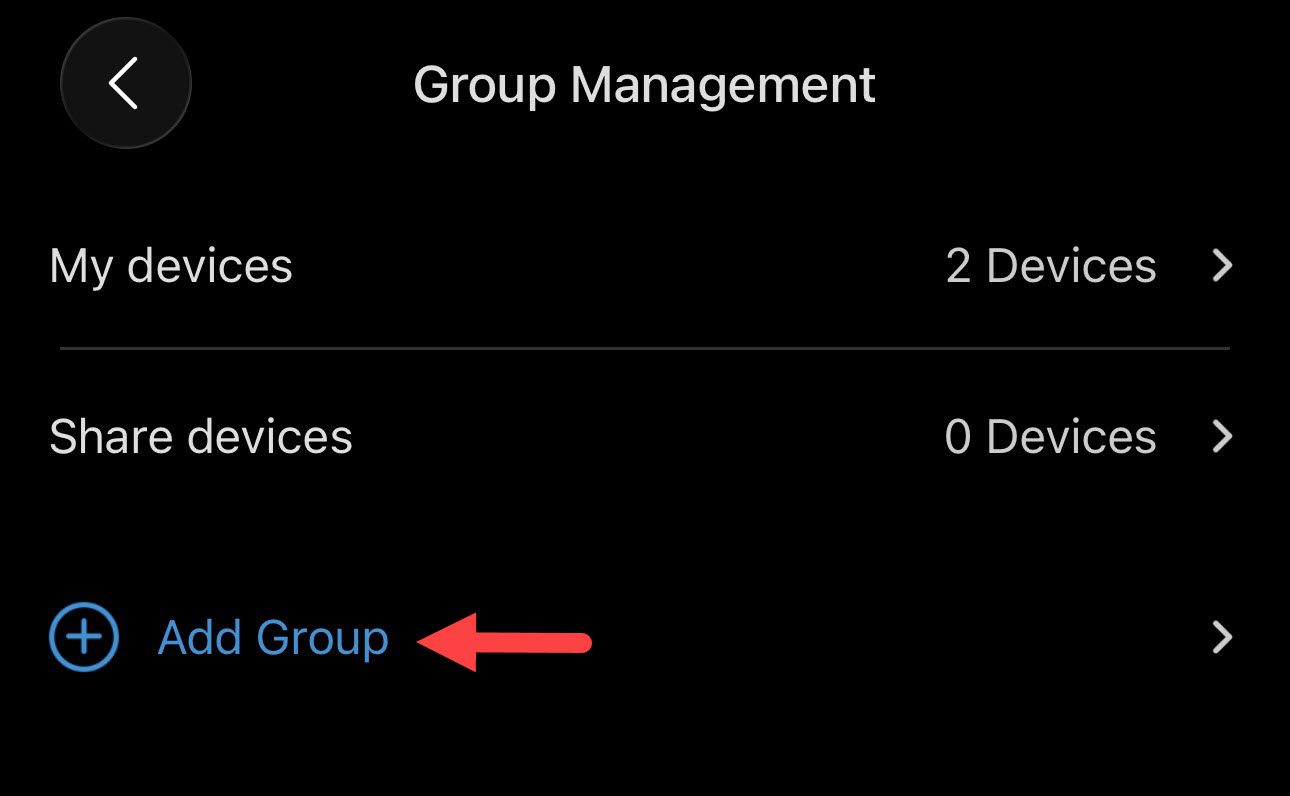
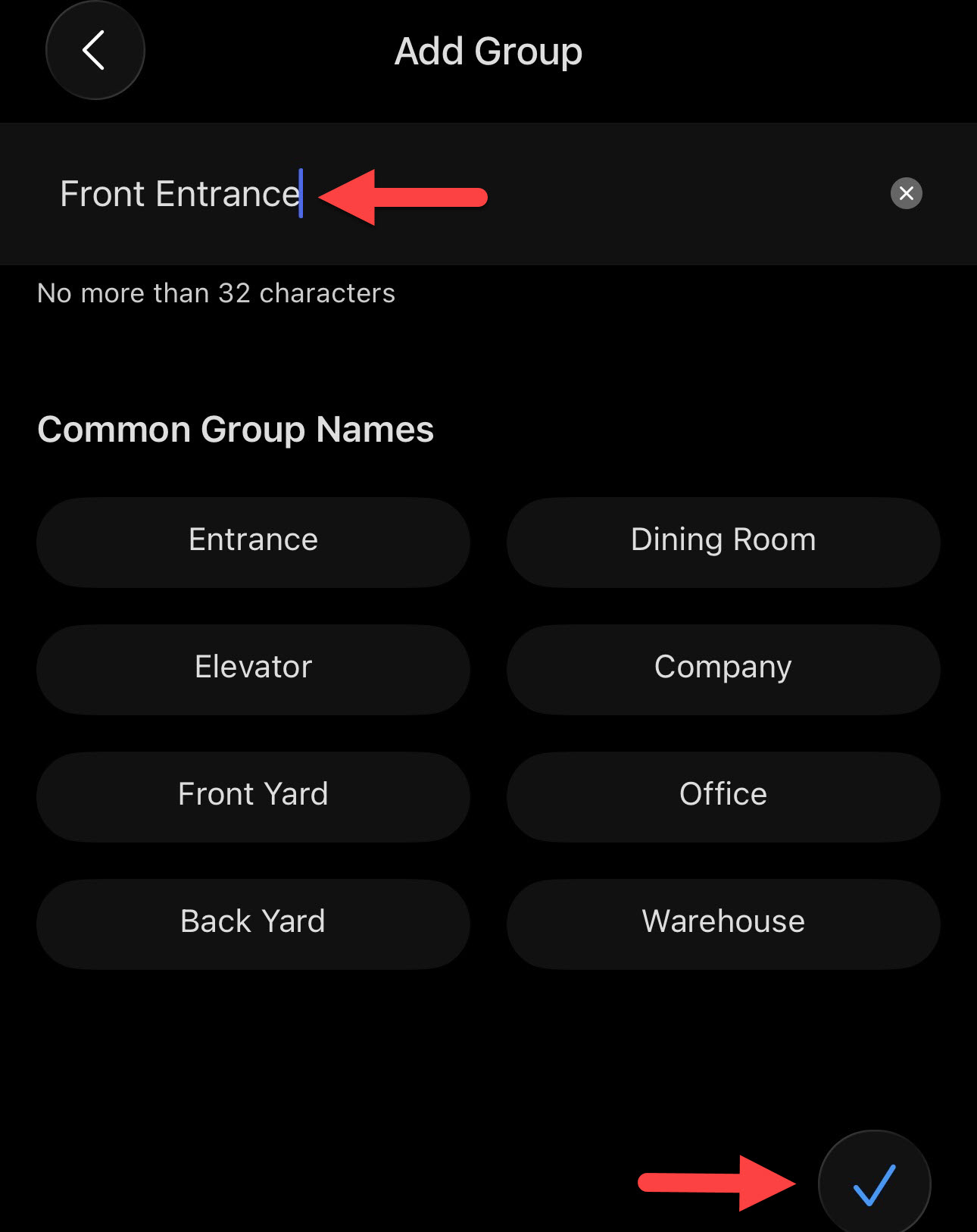
Group Management
1. While under Group Management, click Add Group.
2. Name the group and save.
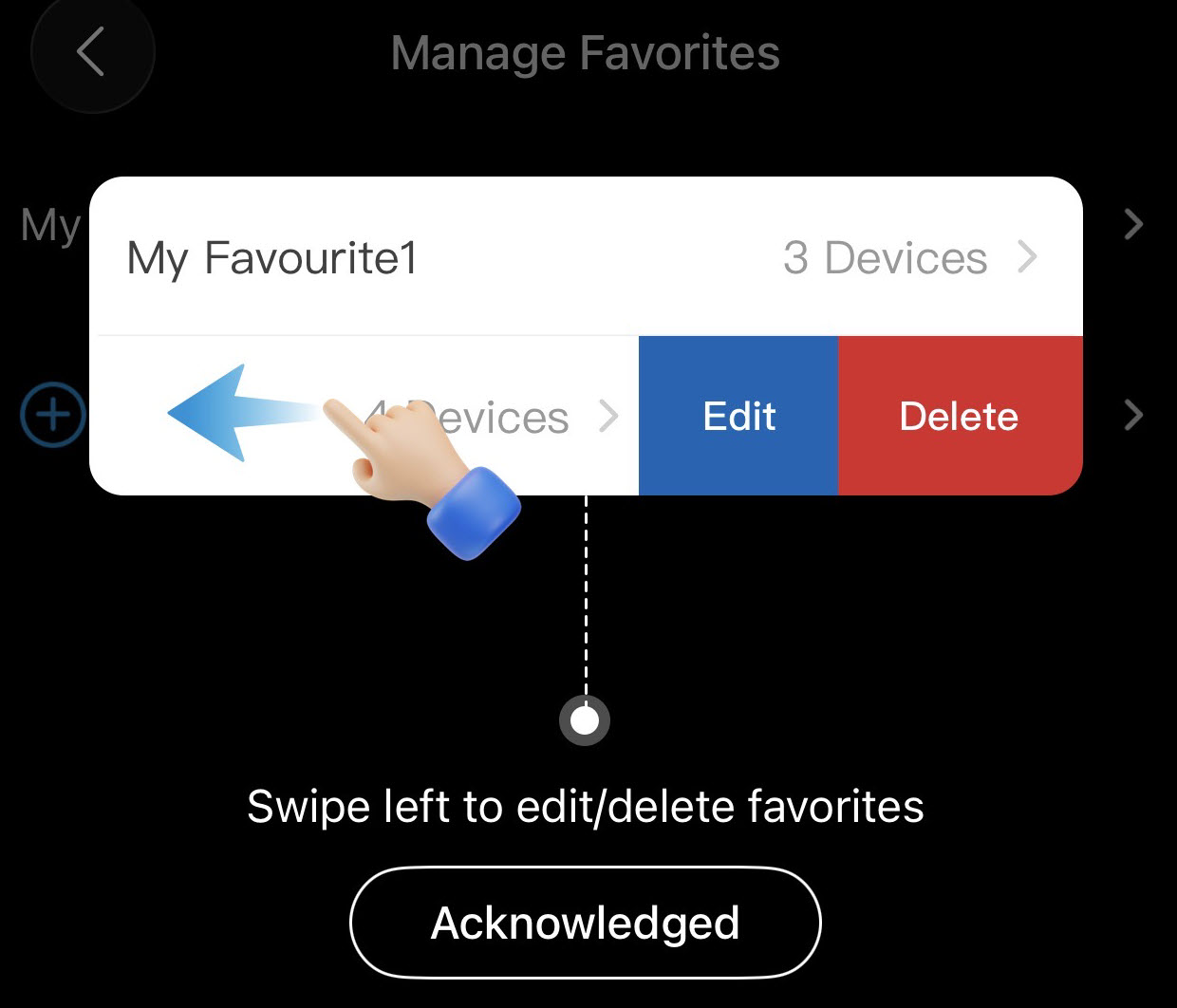
Favorites
While under Favorites, add and name favorite devices. Swipe left to edit or delete favorites.
Notifications
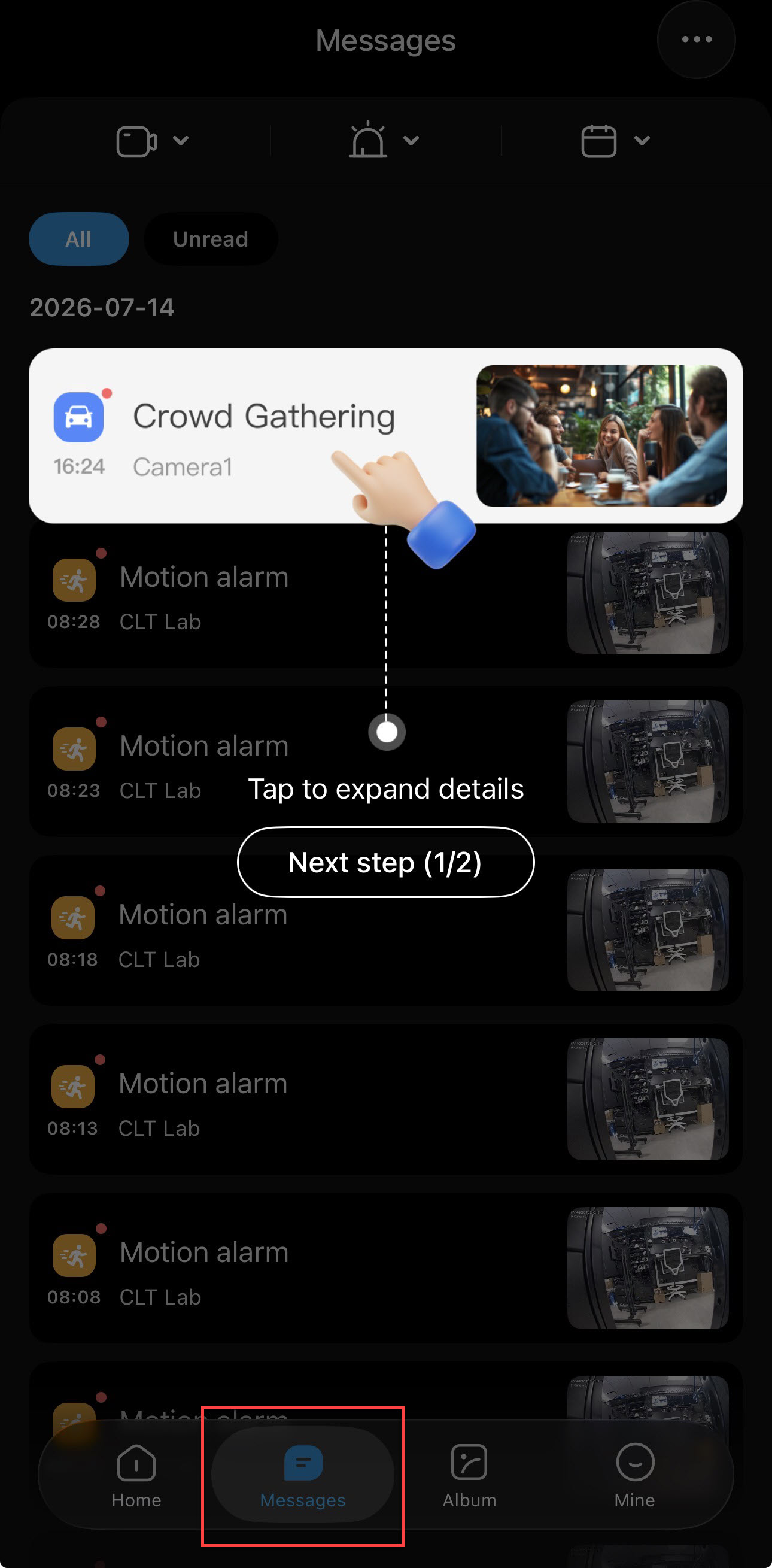
1. Select the Messages iconfrom the home screen to view notifications.
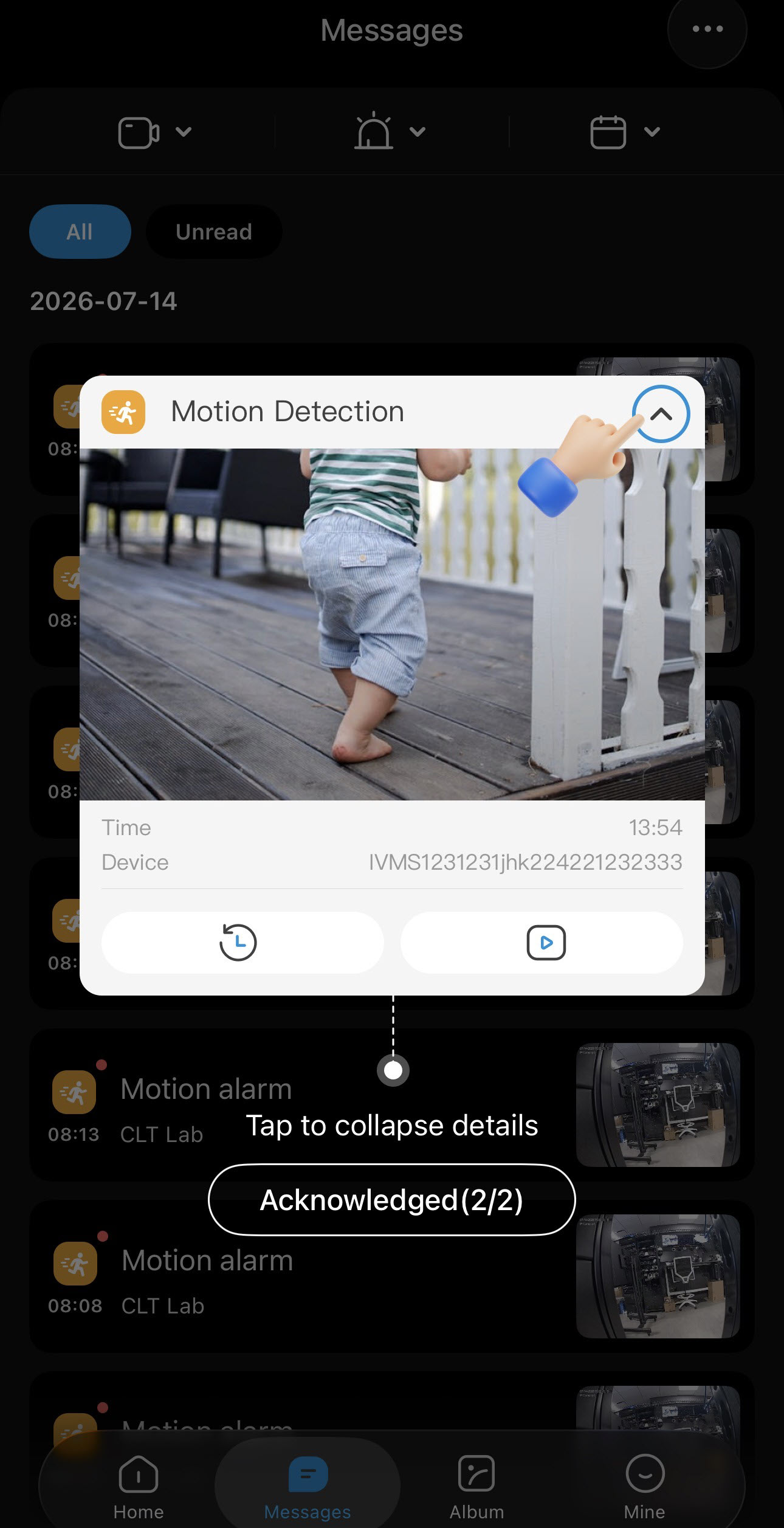
2. Click on a notification from the list to view basic details, like the length of the recording and the device that captured it.
3. Click on the arrow in the event dialogue box to view more details and view playback of the event.